GL-03MOBILE GAMING24 September 20265 MIN
Dealing With Ads in Mobile Games
Ads are the price of a free game. You can reduce them, but not always remove them without paying.
Check whether the game offers a one-time ad removal purchase. Read the store listing for the ad model before installing. The same game behaves differently on different phones, so start from the device rather than the review score.
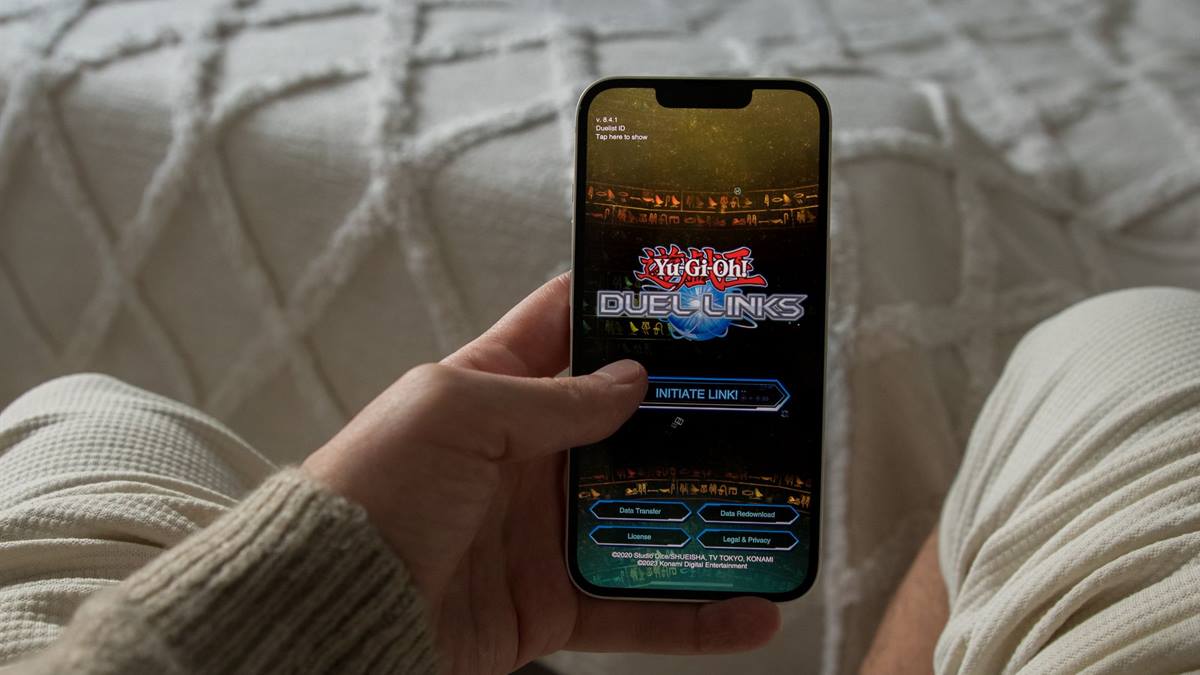
Know what the phone can do
Disable personalised ads in the phone settings if you prefer. Avoid games that show an ad after every attempt, which rarely improve. Heat is the main reason a phone slows down after fifteen minutes of play.
Manage heat and battery
Use the paid version if you play the game regularly. Check whether ads can be skipped after a few seconds. Most mobile games are designed around retention, which is why settings and notifications matter.
Before installing another game, check the free storage and the battery health of the phone. Mobile performance problems are usually storage, heat, or background apps rather than a weak processor. Close what you are not using, lower the graphics settings for long sessions, and play with the charger disconnected where possible. A phone that stays cool runs better than one with the settings maxed out. Keep the brightness on automatic outdoors and lower indoors, and note the temperature when a game stutters, because heat explains more than the settings menu.
Be careful with ads that look like game buttons. A controller or a cooler only helps if the underlying settings are sensible.
Quick settings check
- Read the ad model first
- Check for ad removal
- Avoid misleading ads
- Uninstall ad-heavy games
Tame the settings and the ads
Do not install apps from ads, which often lead to low quality software. Report misleading ads to the store where possible. Account linking is the difference between losing progress and recovering it.
Turn off notifications from games that use them for promotions. Check whether the game works offline, which sometimes reduces ad load.
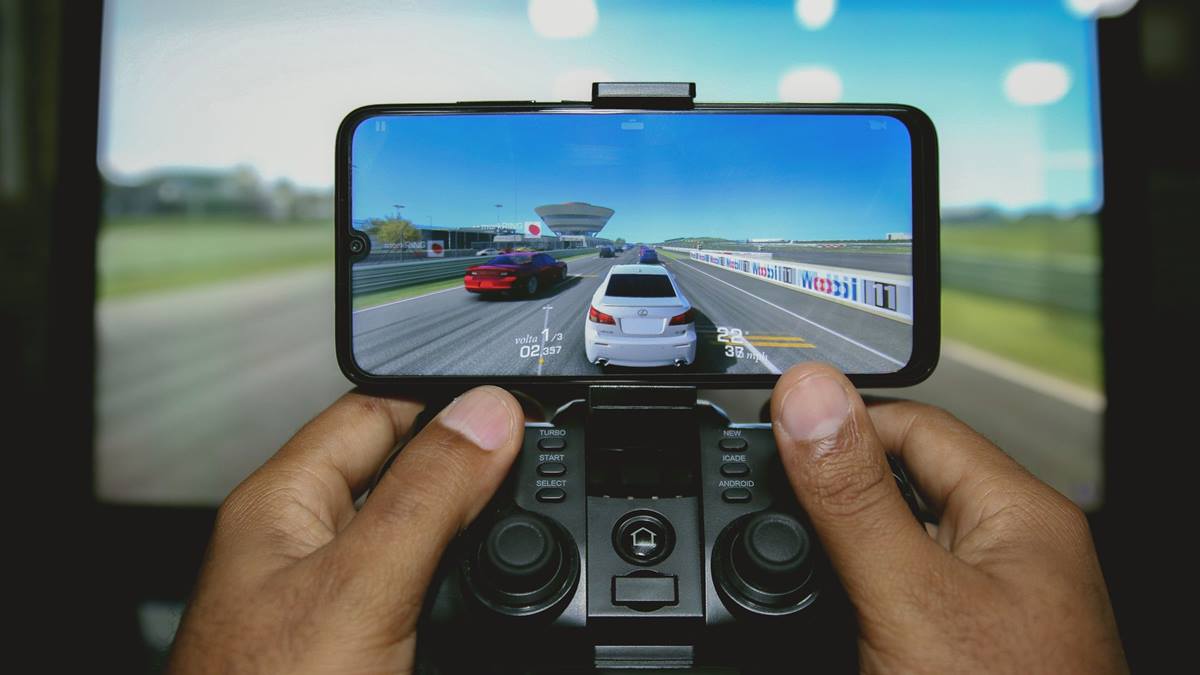
Protect the account and the spending
Consider a small library of paid games instead of many free ones. Avoid entering personal details for a reward. Test one change for a few sessions before adding another accessory.
If you decide to spend, set a limit before opening the store and remove the saved payment method when you are done. Link the game account to a service you control, so progress survives a lost phone. Review the installed games every few months and remove the ones you no longer play, because storage and notifications are the two things that make a phone feel old. A phone treated this way lasts through several years of new releases. If a game asks for permissions it does not need, deny them and check whether it still works, because storage and microphone access are rarely required for play. Take a screenshot of the settings that work, so a reset after an update is quick to undo.
Check the permissions an ad-supported game requests. Uninstall games where the ads are more frequent than the play. Paying once for a game you like is usually better than watching ads daily. If you want the wider picture, read Phone Speakers or Headphones for Gaming before you decide.
For the underlying guidance, see the Android performance guidance.
GL / FAQ
Frequently Asked Questions
Can I remove ads from a mobile game?
Many games offer a one-time purchase. Check the in-game store.
Are personalised ads harmful?
They use data about you. You can disable personalisation in the phone settings.
Why do some games show so many ads?
The ad model pays for development. Games with heavy ads are usually designed around them.
Is it safe to tap game ads?
Be cautious. Ads can lead to low quality or unwanted apps. Use the store to install games instead.