GL-01PC GAMING17 September 20266 MIN
Windows Settings That Actually Help Gaming
A few Windows settings matter. Most of the rest are noise, so change one at a time and measure.
Set the monitor refresh rate in the display settings, since Windows often defaults to 60Hz. Update the graphics driver from the manufacturer rather than relying on the operating system update. Start with the resolution and frame rate you actually play at, because every part is chosen around that target.
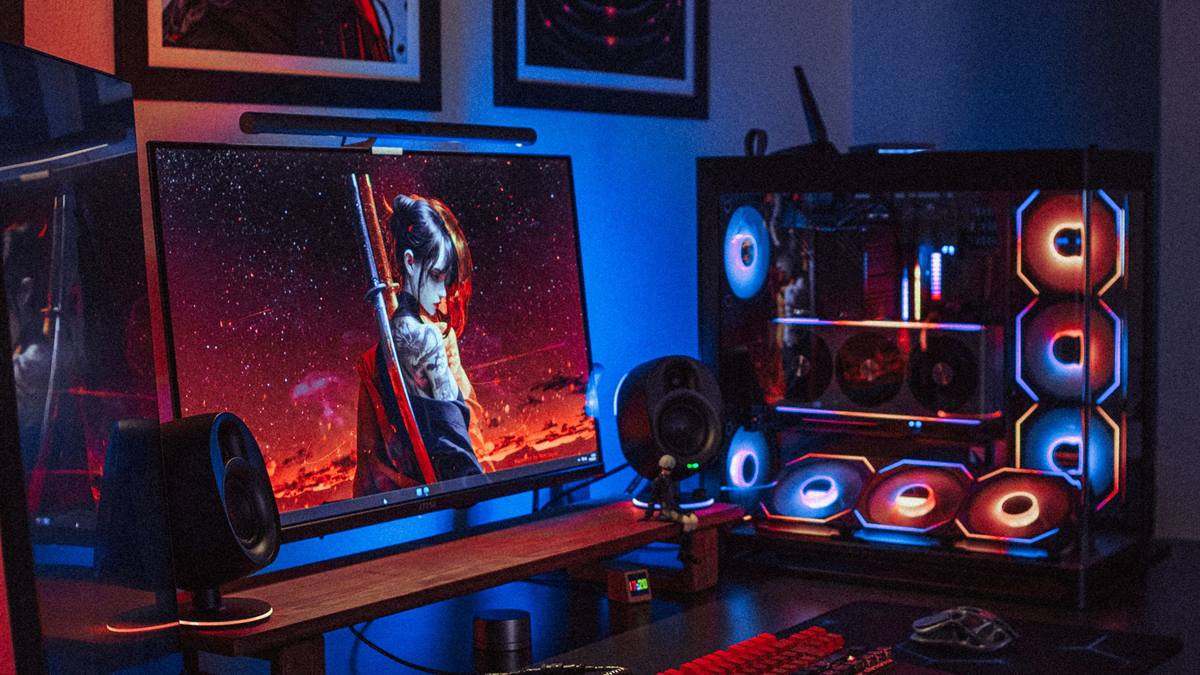
Match the hardware to the screen
Enable game mode, which reduces background interruptions during play. Turn off overlays you do not use, because several can cost frames and cause stutter. A balanced machine beats one expensive component surrounded by bottlenecks.
Fix the part that limits you
Set the power plan to high performance when plugged in. Check that the game is using the dedicated graphics card on a laptop. Heat and power delivery decide whether the advertised performance shows up after twenty minutes.
Before opening the case, note the current specification: processor, graphics card, memory, storage, and power supply. Most upgrade plans fail because one of those parts was assumed rather than checked. Run a benchmark you can repeat, write the result down, and change one component at a time. A cheaper part that removes the actual bottleneck is worth more than an expensive part that does not. Buy from a retailer with a clear return policy, and confirm that the part fits the case, the cooler, and the power connectors before the order ships.
Keep the system drive with free space, since a full drive slows everything. Benchmark one change at a time, so you know which part made the difference.
Check before you buy
- Set the correct refresh rate
- Update the graphics driver
- Turn off unused overlays
- Measure before and after
Watch heat and power
Disable startup programs that are not needed, which helps the whole system. Use the in-game settings for resolution and quality rather than external tools. Most upgrade disappointment comes from replacing the wrong component, not from buying a bad one.
Test the frame rate before and after each change, so the result is measurable. Avoid registry tweaks and third-party optimisers, which often cause more problems than they solve.
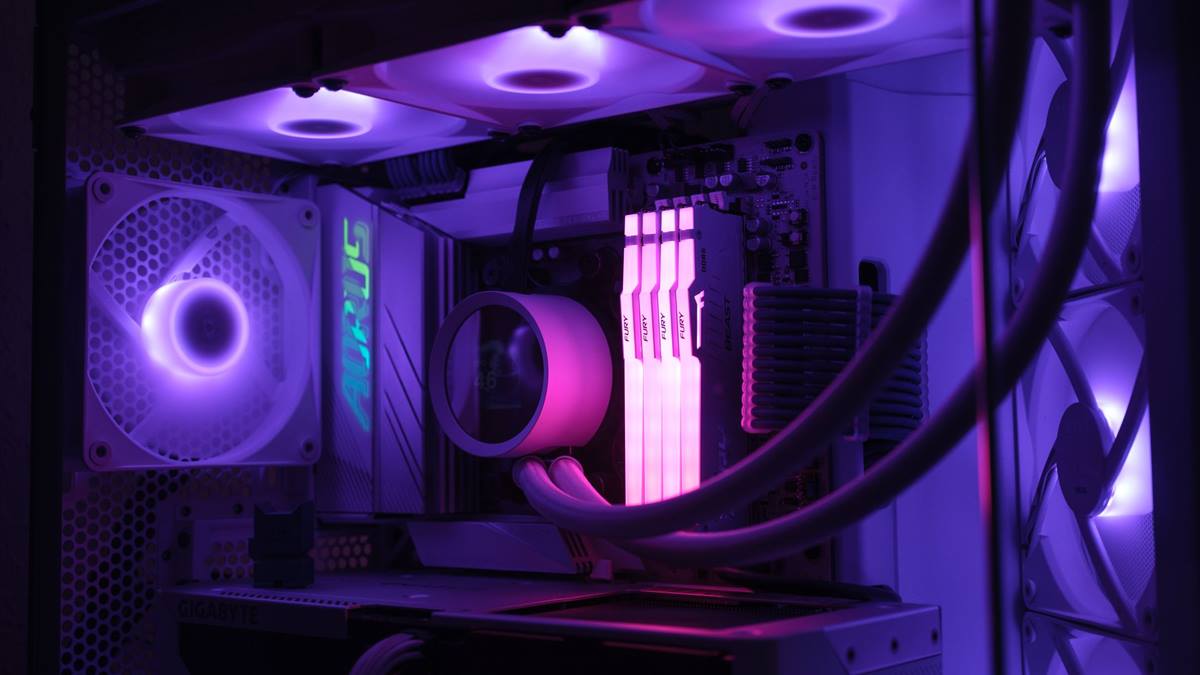
Measure before you upgrade
Update the game itself, since patches often include performance fixes. Check the temperature and clock speeds during play to confirm the hardware is not throttling. Write the current specification down before shopping, because memory is generous about old hardware.
If performance still disappoints, look at the settings before the hardware. Resolution, anti-aliasing, and shadow quality usually cost more frames than any single component can recover. Test a lower setting for one session and note the difference, then decide whether the upgrade is still justified. Keep the receipts and the boxes until the new part has run for a week without problems. If a new part causes instability, restore the old one and test again, because a faulty component can look like a settings problem.
Set a frame rate cap to reduce heat and stutter when the monitor cannot use the extra frames. Keep one backup of the current settings before experimenting. A stable, updated system beats a heavily tweaked one you cannot troubleshoot. If you want the wider picture, read Building a Budget Gaming PC in 2026 before you decide.
For the underlying guidance, see the PC Gamer hardware guides.
GL / FAQ
Frequently Asked Questions
Does Windows game mode help?
It reduces background interruptions on most systems. The difference is small but usually not negative.
Should I use third-party optimisers?
Usually not. They often change settings you cannot easily undo and rarely improve performance measurably.
Why is my game running at 60Hz?
The refresh rate is probably set to 60Hz in Windows or in the game. Check both.
Does updating the driver improve performance?
Sometimes, especially for new games. It also fixes stability issues.