GL-01PC GAMING16 July 20265 MIN
Fan Curves: Quieter Cooling Without Overheating
A good fan curve keeps the PC quiet at idle and cool under load. The default curve is often too aggressive.
Set the fans to run slowly at idle, since the PC does not need much airflow when idle. Ramp up gradually from about sixty degrees, rather than jumping to full speed. Start with the resolution and frame rate you actually play at, because every part is chosen around that target.
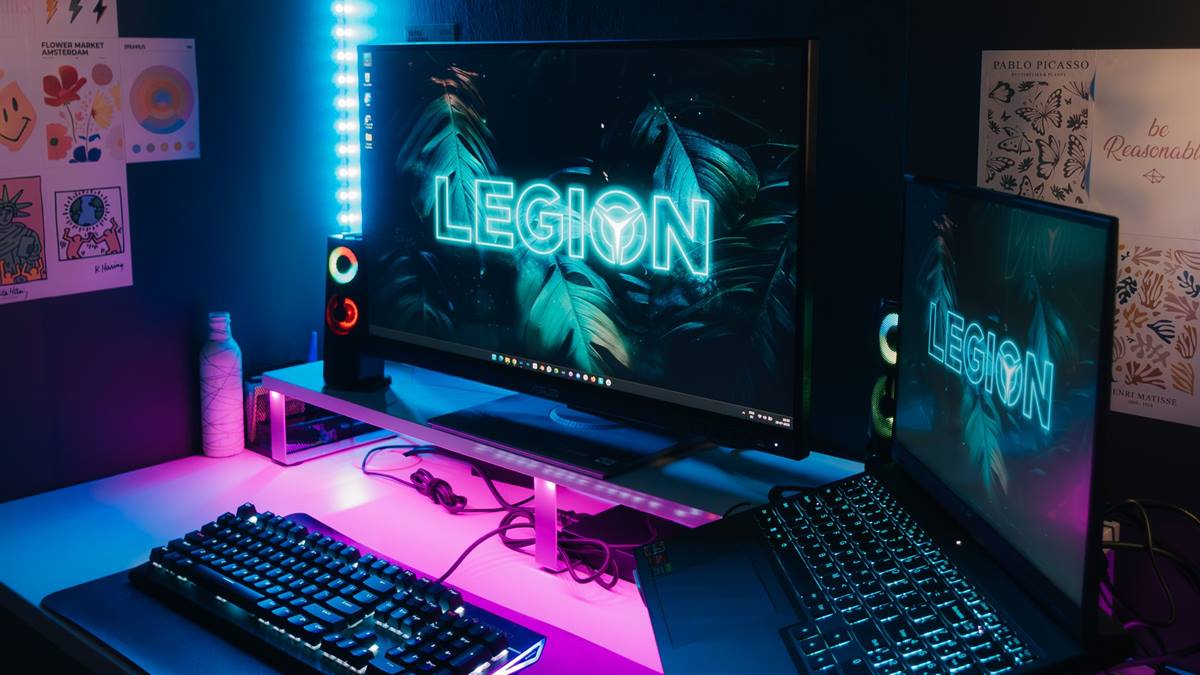
Match the hardware to the screen
Keep the fans at a moderate speed until the temperature is clearly under load. Test the curve with a repeatable workload, such as a benchmark or a game. A balanced machine beats one expensive component surrounded by bottlenecks.
Fix the part that limits you
Watch the temperatures for ten minutes, not just the first minute. Keep the processor below its thermal limit with margin, since room temperature varies. Heat and power delivery decide whether the advertised performance shows up after twenty minutes.
Before opening the case, note the current specification: processor, graphics card, memory, storage, and power supply. Most upgrade plans fail because one of those parts was assumed rather than checked. Run a benchmark you can repeat, write the result down, and change one component at a time. A cheaper part that removes the actual bottleneck is worth more than an expensive part that does not. Buy from a retailer with a clear return policy, and confirm that the part fits the case, the cooler, and the power connectors before the order ships.
Set case fans to follow the processor or the motherboard sensor, whichever is more stable. Benchmark one change at a time, so you know which part made the difference.
Check before you buy
- Slow fans at idle
- Gradual ramp after 60C
- Test for ten minutes
- Save the default curve
Watch heat and power
Avoid curves that oscillate, which cause the fans to speed up and slow down repeatedly. Use the motherboard software or the firmware, whichever is more reliable on your board. Most upgrade disappointment comes from replacing the wrong component, not from buying a bad one.
Save the default curve before changing it, so you can return. A slightly higher idle temperature is acceptable if the load temperature is safe.
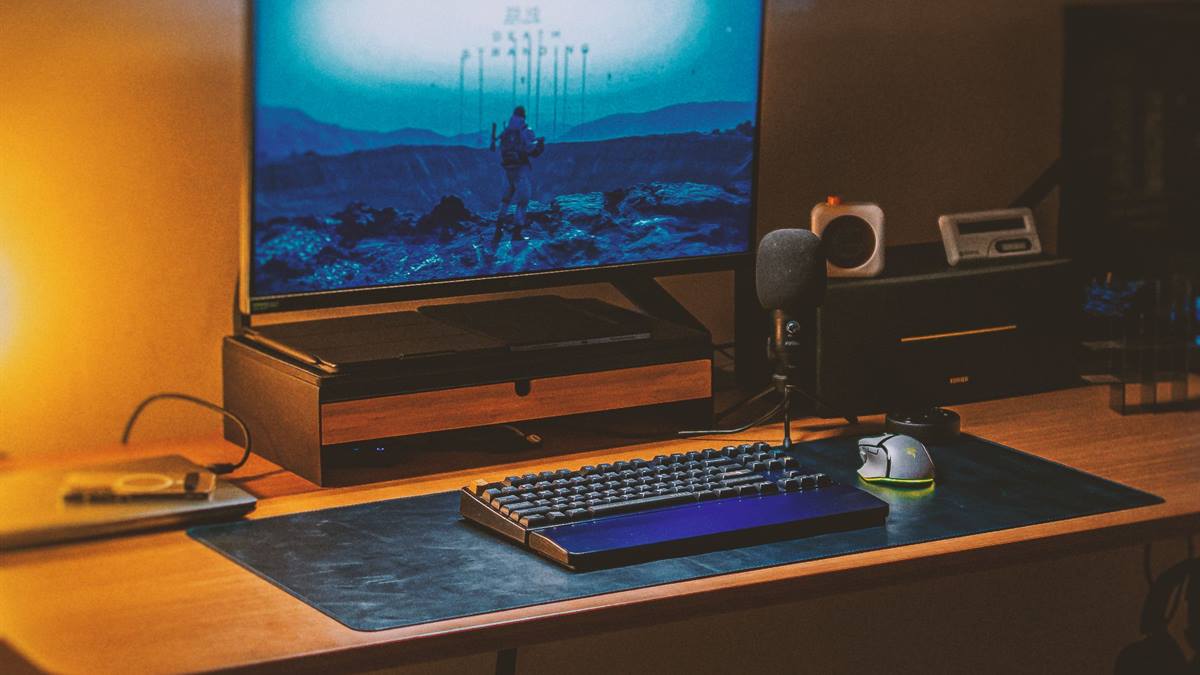
Measure before you upgrade
Check the dust filters, since a clogged filter changes the whole curve. Do not set the fans to zero at idle unless the hardware supports a safe fan-stop mode. Write the current specification down before shopping, because memory is generous about old hardware.
If performance still disappoints, look at the settings before the hardware. Resolution, anti-aliasing, and shadow quality usually cost more frames than any single component can recover. Test a lower setting for one session and note the difference, then decide whether the upgrade is still justified. Keep the receipts and the boxes until the new part has run for a week without problems. If a new part causes instability, restore the old one and test again, because a faulty component can look like a settings problem.
Test in a warm room, since a curve tuned in winter may be insufficient in summer. Listen at the actual distance you sit, not with the case open. A good curve is boring: quiet at idle, steady under load, and no surprises. If you want the wider picture, read Buying a Used Graphics Card Safely before you decide.
For the underlying guidance, see the PC Gamer hardware guides.
GL / FAQ
Frequently Asked Questions
Should I set a custom fan curve?
Yes if the default is too loud. Test temperatures carefully before reducing speeds.
What temperature is too high?
It depends on the component. Check the manufacturer limit and keep a margin below it.
Why do my fans keep speeding up and slowing down?
The curve is probably too aggressive at one temperature. Smooth the ramp.
Can I run fans at zero?
Only if the hardware supports fan stop safely. Otherwise keep a minimum speed.