GL-02CONSOLE GAMING5 September 20265 MIN
Using an External Drive With a Console
An external drive is a good home for older games and a bad place for titles that stream data constantly.
Check the drive requirements for your console, including the minimum speed and format. Use an SSD rather than a mechanical drive for faster loading. Most console problems are solved in the system menu before any hardware is replaced.
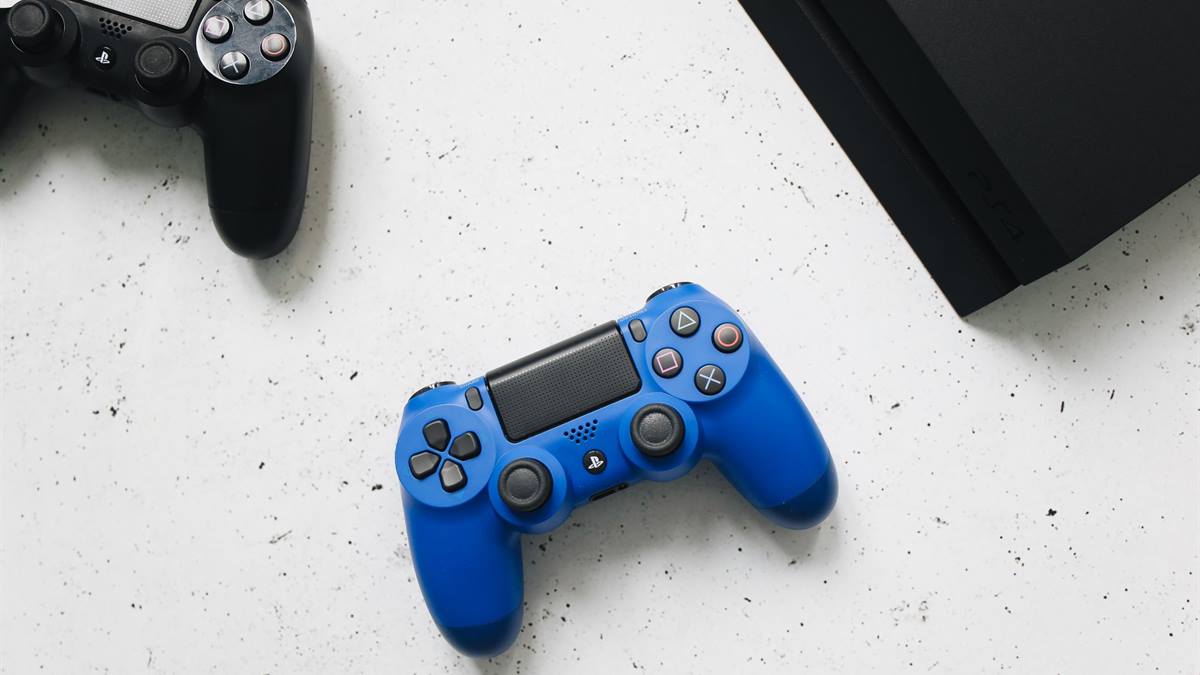
Start with the settings
Store last-generation games on the external drive where the console allows it. Keep current-generation games on the internal drive if they require it. Storage and network settings cause more frustration than the games themselves.
Check the storage and the connection
Format the drive when the console prompts, which erases existing data. Use a drive with enough capacity to avoid swapping games constantly. A console in a closed cabinet runs hotter and louder than one with clear airflow.
Before buying an accessory, check what the console already includes and what the game actually supports. Many problems described as hardware faults are settings, cables, or storage limits. Read the system menu carefully, test with a second cable or controller where possible, and note the current software version. A five-minute check in the settings often saves a return and a week without the console. Most consoles also report the current resolution and refresh rate, which is the quickest way to spot a cable or a port that is limiting the picture.
Keep the drive in a ventilated spot rather than behind the console. Account security matters more than most players expect, especially with saved payment methods.
Before you change anything
- Check the console requirements
- Prefer an SSD
- Format when prompted
- Test one game first
Give the console room to breathe
Avoid unplugging the drive while a game is running. Check whether the console supports more than one external drive. A controller that disconnects is usually a pairing or power problem, not a broken device.
Keep important saves backed up separately from the external drive. Label the drive so you know what is on it.
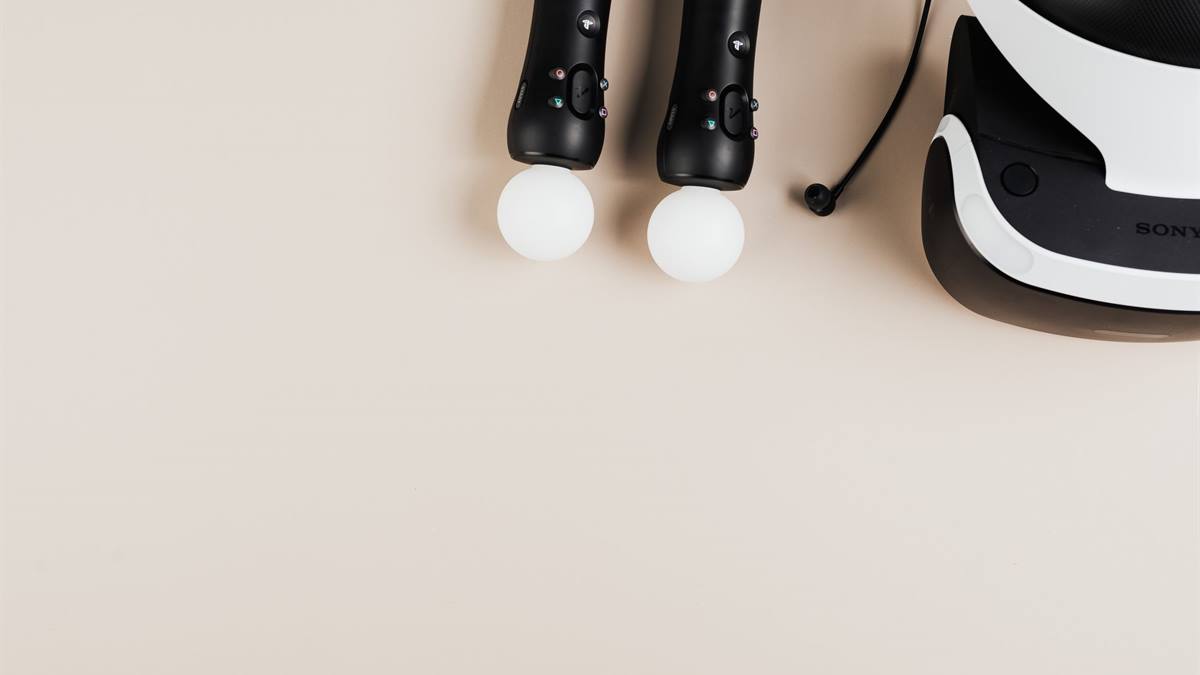
Keep the account secure
Test one game from the drive before moving the whole library. Check the cable, since a poor cable causes disconnects. Test one change at a time, then play for an hour before deciding it worked.
If the problem persists, reset only the affected setting rather than the whole console. Back up saves before any reset, and keep the account password and recovery codes somewhere offline. Give the console clear space and clean the vents gently with the power off. When something does need replacing, check the warranty first, because consoles are usually covered longer than people assume. Keep the receipt and the serial number in a note, since warranty claims ask for both, and set updates to run in standby so security patches do not wait for the next session. Write the new password in a password manager rather than a note beside the console, and check the signed-in devices once a month, since an old session is easy to forget and hard to notice.
Do not use the drive for captures if it slows game loading. Replace the drive rather than relying on one that disconnects randomly. An external SSD is the cheapest way to expand a console library. If you want the wider picture, read Standby Mode: Save Power or Keep It Ready before you decide.
For the underlying guidance, see the Xbox support.
GL / FAQ
Frequently Asked Questions
Can I play games from an external drive?
On many consoles yes for compatible titles. Current-generation games may require the internal drive.
Does an external SSD load faster?
Yes compared with a mechanical drive, though the console interface may limit the benefit.
Will formatting erase my data?
Yes. Back up anything important before connecting the drive to the console.
How big should the drive be?
At least one terabyte for a modern library, larger if you keep many big games installed.